推論スムージングの調整
このセクションでは、Reality AI Toolsの**推論スムージング(Inference Smoothing)**機能を使用して学習済みモデルをテストおよび最適化する方法について説明します。推論スムージングは、指定された範囲で予測結果を平均化することでモデルの安定性を向上させ、リアルタイム予測におけるノイズを低減します。
テストおよび最適化セクションへのアクセス
-
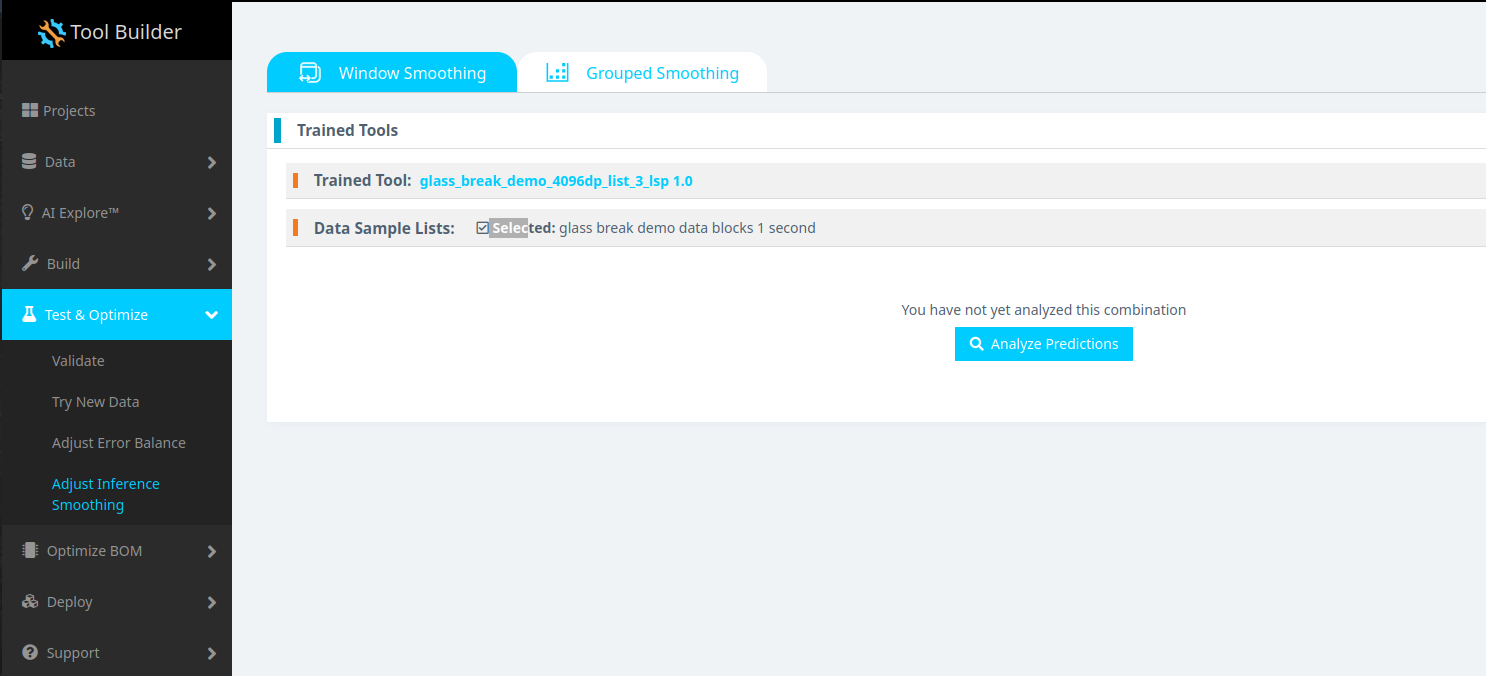
左側のナビゲーションペインからTest & Optimize > Adjust Inference Smoothingに移動します。
-
Trained Tool(学習済みモデル)とData Sample List(テストに使用するデータセット)を選択します。
-
**Analyze Predictions(予測の分析)**をクリックします。 これにより、モデルの予測にスムージング手法を適用するためのグラフィカルユーザーインターフェイス(GUI)がセットアップされます。
推論スムージング手法の理解
適用できる推論スムージングには2つのタイプがあります:
-
ウィンドウスムージング (Window Smoothing) 固定数の予測にわたってスムージングを適用し、ランダムな変動の影響を軽減できます。
-
グループ化スムージング (Grouped Smoothing) メタデータ(ソースファイル名など)に基づいて予測をグループ化してスムージングを適用し、コンテキスト認識型の予測に役立ちます。
ウィンドウスムージングの適用
-
Window Smoothingタブを選択します。
-
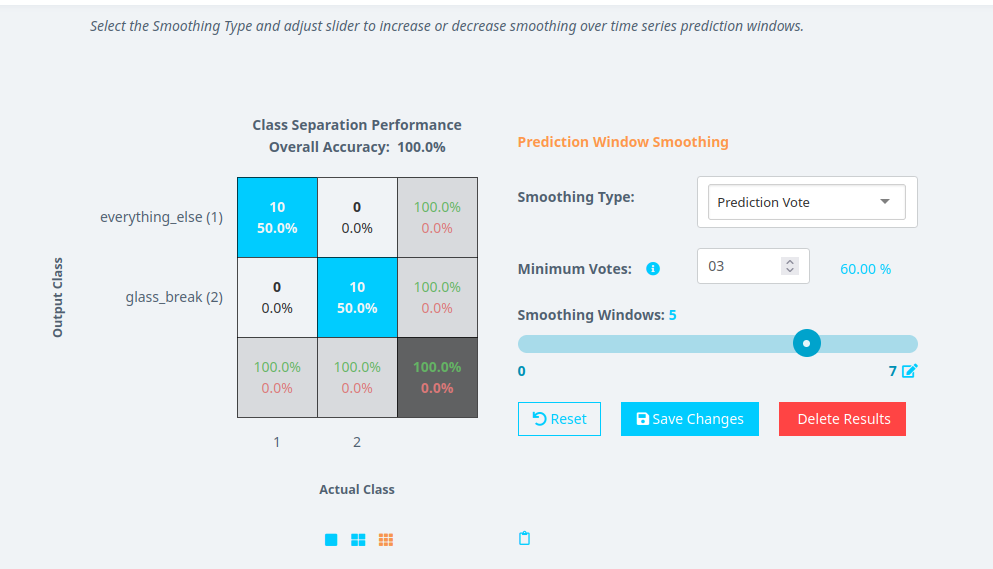
ドロップダウンメニューからSmoothing Typeを選択します:
- Prediction Vote(予測投票): スムージングウィンドウ内で最も頻繁に予測されたクラス(例:
glass_breakまたはeverything_else)を使用します。 - Class Score(クラススコア): 各予測のクラススコア(0〜1の確率)を平均します。
- Prediction Vote(予測投票): スムージングウィンドウ内で最も頻繁に予測されたクラス(例:
-
Prediction Voteを使用する場合は、以下を設定します:
- Minimum Vote (Optional): クラスが選択されるために必要な最小投票数を定義します。これはPrediction Voteモードにのみ適用されます。
- Smoothing Window: 最頻値(最も頻繁な値)が計算される連続予測の数を設定します。
- 例:ガラス破損検知システムの場合、スムージングウィンドウが
5に設定され、Minimum Voteが3の場合、glass_breakクラスが5回中少なくとも3回出現すると、モデルはセグメントをglass_breakとして分類します。
- 例:ガラス破損検知システムの場合、スムージングウィンドウが
-
Class Scoreを使用する場合:
- Smoothing Windowのみを設定します。
- この方法は確率スコア(0〜1)を使用するため、最小投票値を設定する必要はありません。
-
Save Changesをクリックして設定を保存します。
変更を保存すると、スムージング構成を含むモデルがサーバーに保存され、将来のテストや埋め込みエクスポートに使用できるようになります。
グループ化スムージングの適用
-
Grouped Smoothingタブを選択します。
-
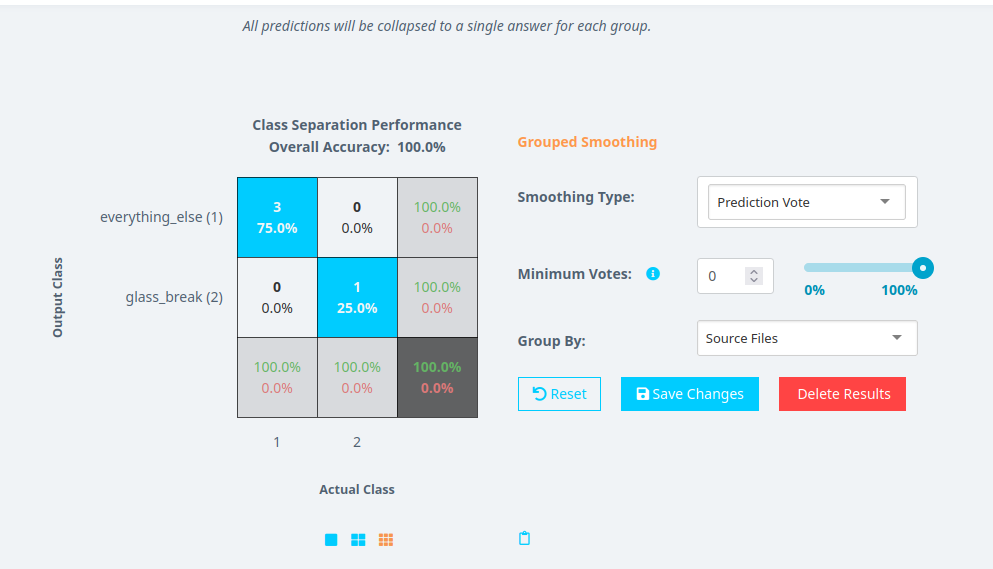
Smoothing Typeを選択します:
- Prediction Vote: 各グループ内で予測されたクラスを平均します。
- Class Score: 各グループ内で確率的クラススコアを平均します。
-
Group Byオプションを設定します:
- メタデータ(例:ソースファイル、日付、またはその他のメタデータフィールド)で予測をグループ化できます。
- これにより、モデルは各メタデータグループ内で個別にスムージングを適用できます。
-
Prediction Voteを使用する場合:
- Minimum Votes値を設定します(任意)。
0に設定すると、モデルは多数決アプローチを使用します。0より大きい値に設定すると、モデルはクラスが選択されるためにその数の投票を必要とします。
- 例:Group ByがSource Fileに設定され、Minimum Votesが
0の場合、モデルは各ファイル内で多数決によるスムージングを実行します。
- Minimum Votes値を設定します(任意)。
-
Class Scoreを使用する場合:
- Group Byメタデータフィールドを設定します。
- この方法は確率スコアを使用するため、最小投票値を設定する必要はありません。
例:推論スムージングの仕組み
シナリオ:
2つのクラス glass_break と everything_else を予測するモデルがあります。
例 1: 予測投票(Prediction Vote)によるウィンドウスムージング
- スムージングタイプ: Prediction Vote
- スムージングウィンドウ: 5
- 最小投票数: 3
| 予測シーケンス | スムージング結果 |
|---|---|
| glass_break, glass_break, everything_else, glass_break, glass_break | glass_break |
| everything_else, everything_else, glass_break, glass_break, glass_break | glass_break |
例 2: クラススコア(Class Score)によるグループ化スムージング
- スムージングタイプ: Class Score
- グループ化基準: Source File
- 各ファイルは、クラススコアを平均化するために個別のグループとして扱われます。
| ソースファイル | 予測 (Raw) | スムージング結果 |
|---|---|---|
| File1 | 0.7 (glass_break), 0.6 (glass_break), 0.4 (everything_else) | glass_break (平均スコア = 0.65) |
| File2 | 0.3 (glass_break), 0.2 (everything_else), 0.8 (glass_break) | glass_break (平均スコア = 0.43) |
各スムージング手法を使用するタイミング
- ライブ推論シナリオに適した、固定数の予測に対する移動平均が必要な場合は、**Window Smoothing(ウィンドウスムージング)**を使用します。
- コンテキストメタデータ(ファイル名、記録セッションなど)に基づいて予測をスムージングしたい場合は、**Grouped Smoothing(グループ化スムージング)**を使用します。
- さまざまなスムージングウィンドウサイズを試して、応答性と安定性の適切なバランスを見つけてください。
- Prediction Voteの場合、Minimum Voteが誤検知(False Positives)を避ける値に設定されていることを確認してください。
- Grouped Smoothingの場合、テスト条件(ソースファイル、記録日など)に一致するメタデータフィールドを選択してください。
最適化されたモデルの保存とエクスポート
調整してスムージングを適用した後、Save Changesをクリックします。
- モデルは、新しいスムージング設定とともにサーバーに保存されます。
- これらの設定は、埋め込み展開用にモデルをエクスポートする際にも適用されます。