Train
This section guides you on how to train a tool using a Base Tool and the contents of a sample list. Training allows you to refine your model and improve its accuracy by leveraging available data. Note that AI Explore uses a balanced subset from the sample list during its exploratory phase, so training results may slightly differ when using the full dataset.
You may need to re-train a tool in the following scenarios:
- Using a different Base Tool: If you want to experiment with another Base Tool created during the AI Explore process.
- Incorporating additional training data: If new data has been added, re-training can enhance the model's accuracy and reliability.
This window is divided into three subsections: Train Tool, Base Tools, and Data Sample Lists. Below is a detailed explanation of each subsection.
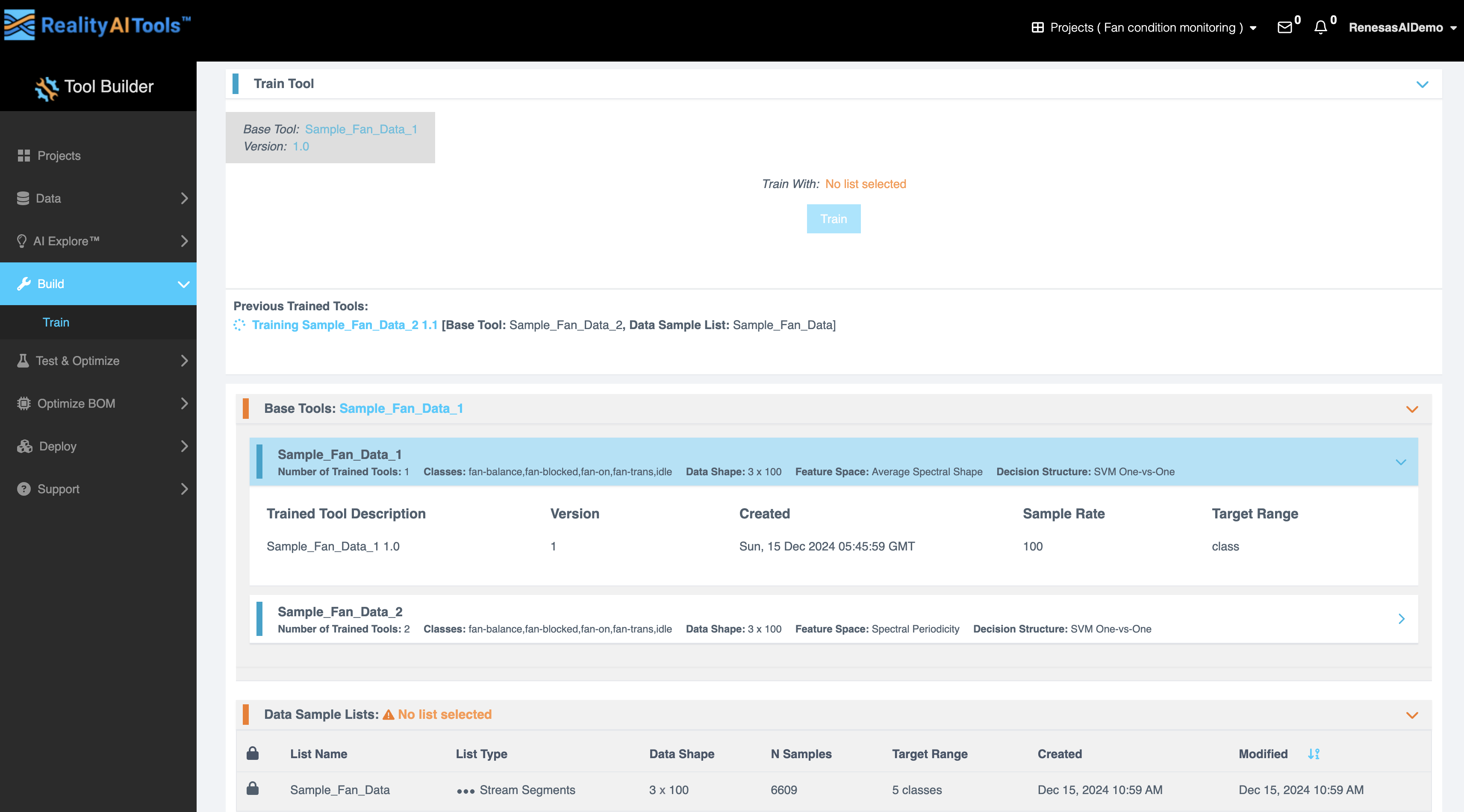
Train Tool
This subsection enables you to initiate the training process by specifying the Base Tool and sample list.
| Field | Description |
|---|---|
| Base Tool | Displays the base tool chosen for training. |
| Version | Displays the version number of the selected base tool. |
| Train With | Shows the sample list selected from the available data sample lists. |
| Tool Name | Enter a name for the tool you are training. This name will help identify the tool in future tasks. |
| Train | Starts the training process using the selected base tool and sample list. |
Once the Train button is clicked, the training process begins. You can monitor its progress in the Previous Trained Tools section.
Previous Trained Tools
This subsection provides a summary of all tools that have been trained, allowing you to monitor their progress and details.
| Field | Description |
|---|---|
| Progress | Shows the current status of the training process. |
| Tool Name | The name assigned to the trained tool. |
| Base Tool | Indicates the base tool used for training. |
| Data Sample List | Specifies the sample list used in the training process. |
You can use this section to view the previously trained tools.
Base Tools
This subsection lists all available Base Tools and their details. Selecting a Base Tool provides additional information, helping you choose the right tool for training.
| Field | Description |
|---|---|
| Name | The name of the base tool. |
| Number of Trained Tools | Displays how many tools have been trained using this base tool. |
| Classes | Specifies the target classes defined in the base tool. |
| Data Shape | Provides the structure and format of the data in the base tool. |
| Feature Space | Describes the feature space used for model creation. |
| Decision Structure | Shows the decision-making framework used by the tool. |
Additional Information for Selected Base Tool
- Tool Description: A brief summary of the tool’s purpose and functionality.
- Version: Indicates the version of the base tool.
- Created Date and Time: When the base tool was created.
- Sample Rate: The data sampling frequency.
- Target Range: The range of values the tool is designed to predict or classify.
Data Sample Lists
This subsection provides a detailed view of available sample lists that can be used for training.
| Field | Description |
|---|---|
| Lock Icon | Indicates whether the sample list is locked (restricted access) or unlocked (accessible). |
| List Name | The name of the sample list. |
| List Type | Specifies the purpose of the list (e.g., training, testing). |
| Data Shape | Describes the data structure and format in the list. |
| N Samples | The total number of samples in the list. |
| Target Range | The range of target values in the sample list. |
| Created | The date and time when the sample list was created. |
| Modified | The date and time of the most recent update to the sample list. |
Instructions for Training
- Navigate to the Base Tools section and select the desired base tool.
- In the Data Sample Lists section, choose the sample list you want to use for training.
- In the Train Tool section, enter a unique name in the Tool Name field.
- Click the Train button to start the training process.
By following these steps, you can efficiently train tools tailored to your specific data. This process enhances model accuracy and prepares the tools for further testing or deployment.