Adjust Error Balance
This section provides a comprehensive guide on how to adjust the error balance in Reality AI Tools. It includes detailed information on the Trained Tools and Data Sample Lists sections and instructions for using the provided features.
The Adjust Error Balance functionality allows you to analyze and fine-tune the performance of trained tools by optimizing error trade-offs based on data sample lists and confusion matrix results.
Trained Tools
The Trained Tools section provides a detailed list of trained tools with key attributes. Use this section to select a specific trained tool for analysis. The table below outlines the details available in this section:
| Field | Description |
|---|---|
| Trained Tool Name | Name of the trained tool. |
| Description | A brief description of the tool and its purpose. |
| Version | The version number of the trained tool. |
| Created Date & Time | The date and time when the tool was created. |
| Sample Rate | The sampling rate used during training (e.g., Hz or samples per second). |
| Target Range | The range of the target variable for classification or prediction. |
| Status | The current status of the tool (e.g., Active, Inactive, Deprecated). |
Data Sample Lists
The Data Sample Lists section contains data samples used for analysis. The table below explains the attributes available:
| Field | Description |
|---|---|
| Lock Icon | Indicates whether the list is locked (read-only) or editable. |
| List Name | The name of the data sample list. |
| List Type | The type of the list (e.g., Training Data, Test Data, Validation Data). |
| Data Shape | The dimensional structure of the data (e.g., Rows × Columns). |
| Sample Rate | The sampling rate of the data. |
| N Samples | Total number of samples in the list. |
| Target Range | The range of target variables included in the list. |
| Created Date | The date when the list was created. |
| Modified Date | The date when the list was last updated. |
| Comments | Any comments or notes associated with the data sample list. |
| Status | The current status of the list (e.g., Active, Archived, Draft). |
Use the Filter icon to refine the displayed data sample lists based on the following criteria:
- Name: Filter by data list name.
- List Type: Filter by type (e.g., Training, Testing).
- Date Created: Filter by creation date.
- Data Shape: Filter by dimensionality.
- Sample Rate: Filter by sampling rate.
Click Apply to apply the selected filters or Clear to reset all filter values.
Analyze Predictions
- Select a Trained Tool and Data Sample List: Choose the tool and list for analysis from their respective sections.
- Start Analysis: Click Analyze Predictions to initiate the analysis process. The tool will process the data and compute predictions.
- Stop Analysis: If required, click Stop Analysis to terminate the process.
Confusion Matrix
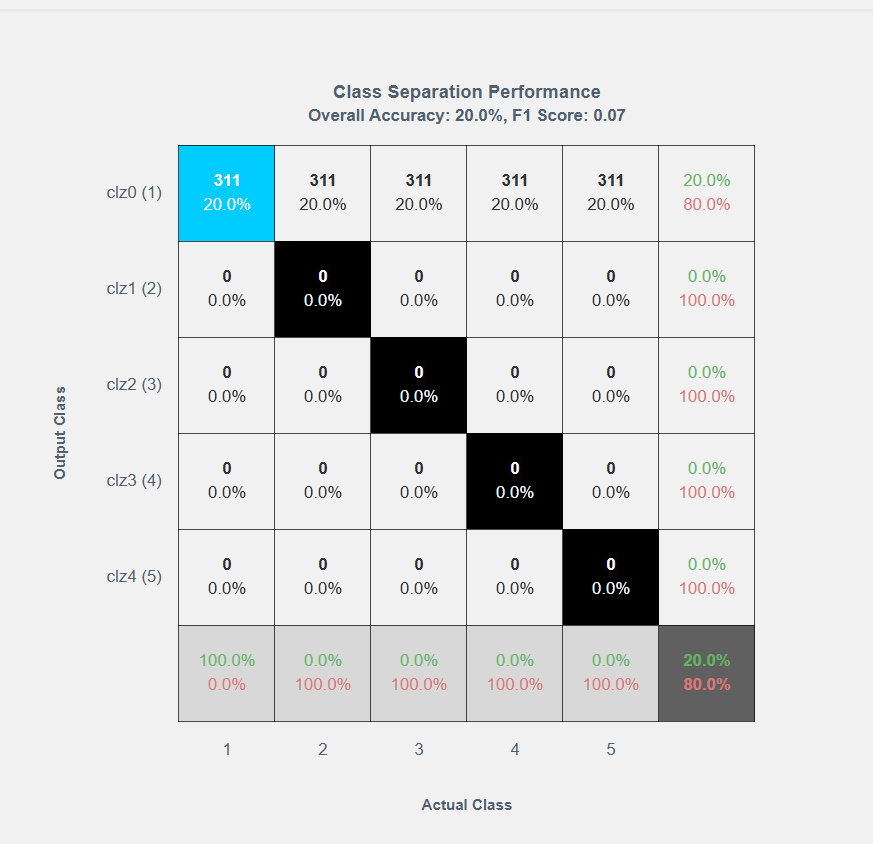
Once the analysis is complete, a Confusion Matrix will be displayed to show the Class Separation Performance and Overall Accuracy and F1 Score. The confusion matrix has:
- X-Axis: Represents the actual class.
- Y-Axis: Represents the predicted (output) class.
Features of the Confusion Matrix
- Off-Diagonal Cells: Highlight errors in classification. Select an off-diagonal cell to reduce specific errors.
- Trade-offs: As you adjust one cell, numbers in other cells automatically adjust, reflecting the trade-offs.
- ROC Surface Optimization: Each adjustment computes optimized trade-offs along the Receiver Operating Characteristic (ROC) surface appropriate for the classifier.
Adjusting Error Balance
On the right side of the matrix, you will find a slider for Error Adjustment. To adjust the error balance, follow these steps:
- Select an Error Cell:
- Click on an off-diagonal error cell in the confusion matrix that you wish to reduce.
- Use the Slider:
- Move the slider to the left or right to adjust the error count for the selected cell.
- Observe how the numbers in other cells change to reflect trade-offs.
- Save Changes:
- Once satisfied with the adjustments, click Save Changes to apply the optimized error balance.
- A dialog box will prompt you to enter the following details:
- New Tool Name: Provide a name for the updated tool.
- Overwrite Existing Tool: Select this checkbox if you want to overwrite the current tool.
- Click Save Changes to confirm and apply the updates.
- Adjustments are calculated dynamically based on classifier performance metrics.
- Use error adjustment judiciously to maintain a balanced trade-off between precision and recall.
- Saved adjustments are reflected in future analyses.
This helps you to effectively utilize the Adjust Error Balance feature to fine-tune your trained tools and achieve improved performance outcomes.