User Interface Overview
When you log in, the Projects page opens by default, showing a list of all the projects you have created. This page serves as a centralized workspace, allowing you to group and manage related objects such as source files, sample lists, and trained tools associated with data of the same kind.
When to Create a New Project?
Consider creating a new project in the following scenarios:
- Different Sensor Types or Placements: When your data originates from various types of sensors or sensors placed in different locations.
- Varying Base Sample Rates: If your data is collected at different sampling frequencies.
- Distinct Training Labels: When the data involves training labels associated with a different problem or analysis goal.
Organizing your data and tools effectively within distinct projects helps maintain clarity and reduces the risk of confusion or errors during analysis and model training.
If you are logging in for the first time, the Projects page will be empty.
The following screenshot shows the major UI elements of the tool.
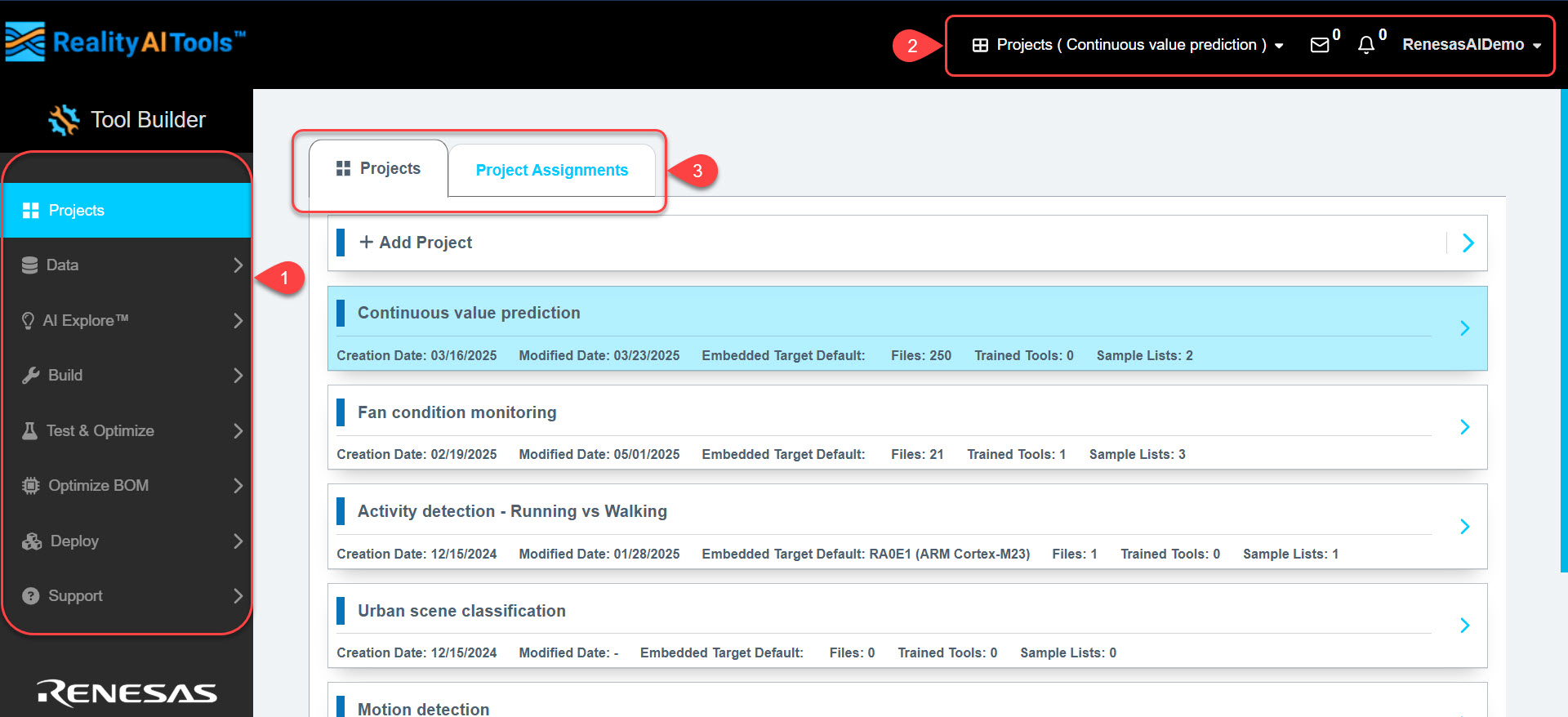
1. Left Navigation Pane
The left navigation pane provides access to the following sections: Projects, Data, AI Explore, Build, Test & Optimize, Optimize BOM, Deploy, and Support. Each section is arranged in a top-to-bottom sequence, allowing you to perform operations in a logical, step-by-step order. These options cover the entire lifecycle of data on RealityAITools.
If you are an Admin, you will also see a Dashboard at the bottom of the left navigation pane.
2. Top-Right Menu
The top-right menu is static and accessible across all features of the tool. It includes:
- Active Project Dropdown: Displays the currently active project. Click the dropdown to switch between your created projects at any time.
- Message Icon: Access messages and notifications from RealityAITools. You can also receive responses to the messages you have sent from Support > Contact.
- Alerts Icon: View alerts related to your projects and activities.
- User Profile Dropdown: Click your username to view your profile, access your API key, or log out.
3. Projects and Project Assignments Tabs
These tabs allow you to:
- Projects Tab: View and manage your project list.
- Project Assignments Tab: Access the sample list and trained tools associated with your projects.